


Phomemo
3.31.46K Reviews
App Specs
- Version
- 4.0.0
- Updated On
- License
- Free
- Downloads
- 1,000,000+
- Developer
- ZHUHAI QUIN TECHNOLOGY CO.,LTD.
- Categories
- Tools
- Platform
- Android
Screenshots
 Analysis by AppCompare
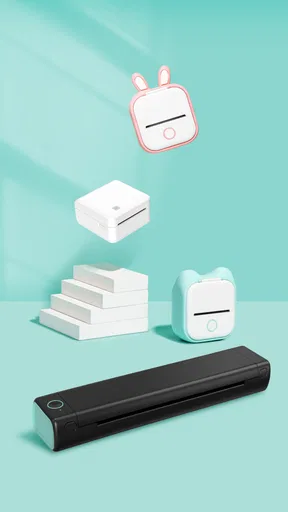
I like portable printing most when it solves a small, immediate problem: marking a storage box, preparing a quick reminder, or turning a short note into something I can stick where I’ll see it. Phomemo is a free tools app for working with Phomemo portable printers, and its appeal is less about replacing a full-size printer than making these little jobs convenient. If you already own a compatible printer, it can make printing feel like a natural extension of your phone; if you don’t, the app alone won’t produce anything on paper.
What “free” means for the decision
The app is free to download, which makes it easy to explore before deciding whether its workflow suits you. There are in-app purchases ranging from $0.49 to $39.99 per item, so free access and the cost of using the wider printer setup are separate questions. I would check the purchase details in the app before paying for anything and consider the printer and printing supplies as part of the overall commitment. The app’s price by itself does not tell you what a complete setup will cost.
That distinction matters because Phomemo is a companion to physical hardware, not a printer hidden inside your phone. If you already have a compatible device, trying the app is a low-friction next step. If you are starting from scratch, compare the total cost and the kind of output you need with other printing options before buying a printer. A free app can be useful, but it cannot make a hardware purchase worthwhile if you will only print once in a while.
Getting Started and Making Prints Useful
Okay, first things first. Let’s talk about getting this app up and running. Downloading Phomemo is a breeze—available on both Android and iOS, just a quick search in the App Store or Google Play, and you’re good to go. The app pairs with Phomemo’s range of mini-printers via Bluetooth. The setup is straightforward, and in just a few taps, you’re ready to print.
The Cool Features
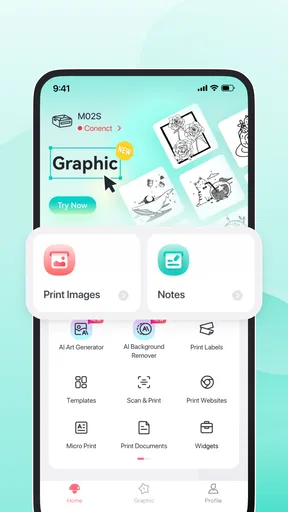
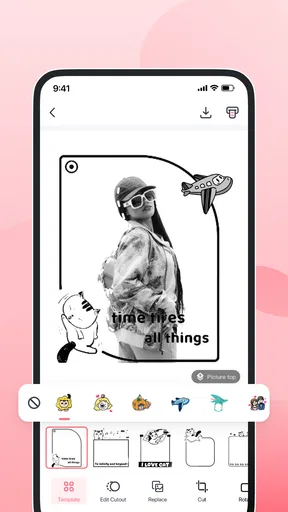
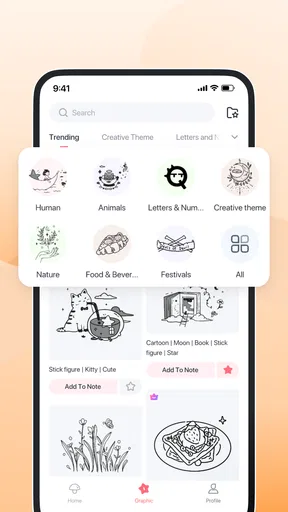
Now, what really sets this app apart is its versatility. The app offers a wide array of templates—anything from labels and stickers to custom designs. If you’re a sucker for creativity, you’ll find yourself lost in options. You can import images, adjust sizes, and even change fonts to suit your style. It’s like having a mini print studio in your pocket!
One feature I found particularly nifty is the OCR functionality. Just snap a picture of any text, and the app converts it into an editable format. How cool is that? This feature is a game-changer for students or professionals who need to digitize notes or documents quickly.
Printing Like a Pro
Alright, let’s talk about the actual printing process. With the Phomemo app, you can print on various materials. Whether it’s sticker paper, labels, or even regular paper, the results are crisp and clear. The print quality is surprisingly good for such a compact device. It’s perfect for crafting, scrapbooking, or even organizing your pantry with stylish labels.
Worth Reading Before You Choose

EA SPORTS FC Mobile 26 Is a Bigger Football Game, but It Takes Time

Flipboard Shows What News Apps Must Do Beyond the Feed

Switching to Android Auto Means Rethinking Your Driving Routine

Google Calendar Makes a Crowded Week Easier to Manage

Ludo King Makes the Most of the Minutes Between Plans

Baby Panda World Brings Quick Play to Modern Phones, but Its Game Library Feels Busy
One thing to note, though, is that the printers don’t use ink. Instead, they use thermal printing technology, which means you never have to worry about messy cartridges. It’s eco-friendly and wallet-friendly!
Planning a practical print session
For the best results, I’d treat the app as a small-format tool and prepare the content with the final label in mind. A long paragraph that looks readable on a phone can become cramped when printed at a compact size. I keep labels to a short name or instruction, check the preview, and only then send the print job. That simple habit saves paper and makes the result easier to scan later.
There’s also a useful way to think about templates: use them as starting points rather than as a reason to overdesign. For pantry jars, for example, consistent wording and a clear type style are more helpful than decorative details. For a craft project, the opposite may be true, and imported images or font adjustments can make a small print feel personal. Matching the design to the task is more valuable than trying to make every print elaborate.
OCR is most useful when the source text is short and the goal is to reuse it, not when you expect a perfect scan of a whole page. I’d check the converted text before printing, especially for names, numbers, or instructions where one recognition mistake could cause confusion. A practical workflow is to capture a brief note, edit it for length, and print only after reviewing it. That keeps the convenience of text recognition while avoiding the assumption that a camera capture is automatically print-ready.
Where it fits beside other printing options
Compared with sending a document to a conventional home printer, a portable printer can be a better fit for quick labels and small reminders because the phone-to-device workflow is direct and the output is designed for compact jobs. A standard printer is still the sensible choice for full-size pages, lengthy documents, or work where paper size and conventional ink output matter. I wouldn’t choose a mini-printer as a replacement for every household printing need.
It also differs from a digital to-do list or a note-taking app: those are easier to revise and search, while a printed reminder can stay visible on a container, folder, or workspace. The trade-off is that a physical print is less flexible after it is made. I’d print information that benefits from being seen in one place, and keep details that change often on the phone. This division helps avoid filling a room with labels that quickly become outdated.
Everyday uses and small workflow choices
Imagine unpacking groceries and wanting to mark a few containers before putting everything away. I’d use a short label, print only the items that genuinely need identifying, then place them where they can be read without moving the container. The app’s templates can help with presentation, but the practical win comes from keeping the wording brief and consistent. The same approach works for craft supplies or folders: decide what needs to be found quickly, then print a few clear labels rather than trying to label everything at once.
For a student, a compact print can make a useful divider label or a reminder to attach to a notebook, while OCR may help turn a short passage into editable text before printing. For a home organizer, labels can make shared storage easier to understand. For a maker, the ability to adjust a design or bring in an image offers more flexibility than handwriting every small tag. In each case, the best value comes from repeated, small tasks—not from expecting the app to handle every document job.
One detail worth planning around is the consumable material. Thermal printing avoids ink cartridges, but the paper or label stock still matters to the result and has to suit the printer you use. Before designing a batch, make sure the material you intend to print on is appropriate for your device. It is also worth printing one test label before preparing many copies; a small check can reveal that wording, spacing, or size needs adjusting before you commit the rest of the roll.
User Experience
Using the Phomemo app is a delight. The interface is intuitive, and even if you’re not tech-savvy, you’ll find it easy to navigate. The app is smooth, with minimal lag, which is always a plus in my book. Plus, the frequent updates ensure you have the latest features and improvements at your fingertips.
There's also a supportive community behind the app. I found that their customer support is top-notch, and their online forums are buzzing with tips and tricks from fellow users. It’s always great to see an app that not only delivers on functionality but also fosters a sense of community.
What to weigh before committing
The app is developed by ZHUHAI QUIN TECHNOLOGY CO.,LTD. and is rated for Everyone. It has an average rating of 4.0 from around 8.8 thousand ratings, with roughly 1.3 thousand written reviews, and has passed one million installs. Those figures suggest it has reached a broad audience, but they don’t guarantee that every printer, material, or workflow will suit your particular needs. I’d treat the rating as context, then judge the app by whether it works smoothly with the printer you plan to use.
Version 3.16.0 is the current version, and the app requires Android 7.0 or later. If you’re on an older Android device, check compatibility before building your workflow around it. The app is also available on iOS, so the platform you use is part of the practical decision. Either way, it makes sense to confirm the connection with your own printer before preparing a large batch of labels or relying on a print for something time-sensitive.
The main friction is the dependence on compatible hardware and suitable printing material. Someone looking for a free way to print without buying or owning a printer should skip it; the app cannot replace that device. I’d also steer people toward a regular printer if they mainly need multi-page documents, and toward digital notes if they frequently revise the same reminders. Phomemo makes the most sense when its compact output solves a recurring, specific task.
Final Thoughts
So, would I recommend Phomemo? Absolutely! It’s a fun, practical tool for anyone looking to add a personal touch to their printed materials. Whether you’re organizing your home, crafting, or just love the idea of portable printing, this app has you covered. It’s like having a little bit of magic in your pocket, ready to transform the mundane into something special.
So go ahead, give it a whirl, and let your creativity run wild. Happy printing!
Who gets the most value
I’d recommend trying it if you already have a compatible Phomemo printer and regularly make labels, small stickers, or short printed notes. The strongest fit is someone who likes to organize by sight, wants a quick way to personalize small-format prints, or has craft projects where a phone-based design step is more convenient than handwriting. Students and home organizers can benefit too, provided they keep expectations tied to brief, compact output rather than full document printing.
If you’re considering buying a printer just for this app, first write down the jobs you expect it to handle and how often you’ll do them. That makes it easier to compare the total hardware and material expense with simply using a standard printer, handwriting a label, or keeping the information digital. My verdict is to try the free app when the printer is already part of your setup, and to buy hardware only if repeated small prints would genuinely save you time or make your projects easier.
Pros
- Easy to use interface for quick setup.
- Wide variety of labels and templates.
- Compact and portable design.
- Bluetooth connectivity for wireless printing.
- Compatible with both Android and iOS.
Cons
- Limited battery life requires frequent charging.
- Sticker paper can be expensive.
- Occasional connectivity issues reported.
- Limited to black and white printing.
- App updates can be slow to release.
FAQs for Phomemo
What is Phomemo, and how does it work?
Phomemo is a versatile mobile application that pairs with Phomemo portable printers to enable instant printing of photos, labels, and documents directly from your smartphone. The app allows you to customize prints with text, images, and various templates, making it perfect for personal and professional use. It connects via Bluetooth, ensuring seamless operation.
Is the Phomemo app compatible with all smartphones?
The Phomemo app is designed to work on both Android and iOS devices. It requires Android version 4.0 or higher and iOS 8.0 or later. Before downloading, ensure your device meets these requirements to guarantee compatibility and optimal performance.
What features does the Phomemo app offer?
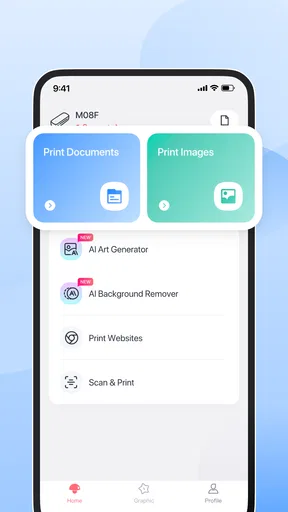
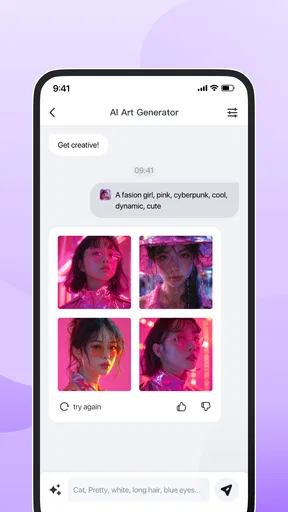
Phomemo offers a rich selection of features including customizable templates for labels, stickers, and memos. Users can edit images, add text, and choose from various fonts and icons. The app supports multiple printing options such as photos, documents, and web pages, making it incredibly versatile for different needs.
Are there any costs associated with the Phomemo app?
The Phomemo app itself is free to download and use. However, keep in mind that the app is designed to work with Phomemo portable printers, which are sold separately. Additionally, users may need to purchase compatible printing paper or labels depending on their specific printing needs.
How user-friendly is the Phomemo app for beginners?
The Phomemo app is highly user-friendly, featuring an intuitive interface that is easy to navigate. Beginners will appreciate the step-by-step guides and tutorials available within the app, which make it simple to start printing almost immediately. The clear layout and accessible features ensure a smooth user experience for all.


